Old file versions are quietly eating your SharePoint storage.
SharePoint keeps up to 500 versions of every document by default — each one counting against storage you pay for. When the tenant runs full, Microsoft's extra storage is billed per gigabyte, per month, forever. TrimVersions365 measures the bloat per library and shows you, for free, what a trim policy would give back. The Pro tier deletes exactly what the preview showed you. Old versions only. Nothing else — provably.
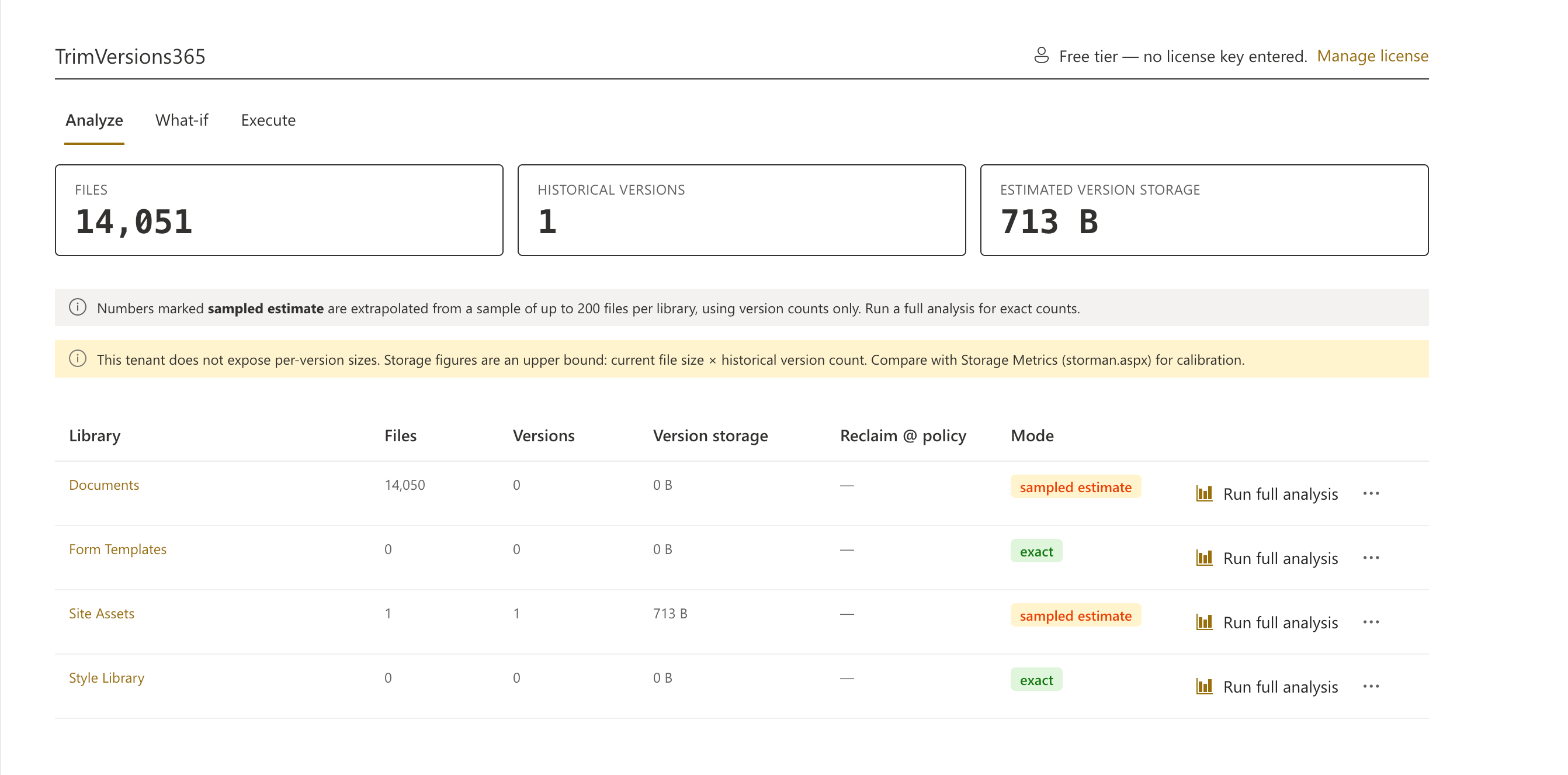
TrimVersions365 running in a live SharePoint site.
The problem
Version history is the storage bill nobody itemizes.
Every time someone saves a document, SharePoint can keep the previous state as a full historical version. The default limit is 500 major versions per file, with no expiration — and every one of them counts against your tenant's storage quota at full file size. A 40 MB presentation that a team polishes for two weeks can quietly become gigabytes of history.
Microsoft knows. Its own documentation for the newer "Automatic" version-expiration setting shows a 96% reduction in version storage over six months compared to plain count limits. But that setting only shapes the future: switching it on does not trim the versions your libraries have already accumulated. The backlog stays, and the backlog is usually the biggest single consumer of your storage.
You have three ways out: buy more storage every month, delete real documents, or trim old versions. Only one of those costs nothing recurring and destroys nothing anyone will miss.
The math, itemized
Extra SharePoint storage      ~USD 0.20 / GB / month
1 TB of version bloat         ~USD 205 / month
                               ~USD 2,458 / year
TrimVersions365 Pro            €349, once
USD 0.20/GB/month is the commonly listed commercial price of Microsoft's "Office 365 Extra File Storage" add-on; your price can differ by region and agreement. Sources are linked in the FAQ (Q7 and Q8).
How it works
Scan. Choose a policy. Preview. Then — and only then — trim.
TrimVersions365 is a web part on a page in your own site. No console, no PowerShell, no admin consent screen.
The current version of every file. Any document. Any folder. Any list or library. There is no code path for deleting them — not disabled, not hidden: absent. The verifier script in your download proves it against the exact package you install.
keep last 10 versions + delete older than 365 days
You choose this for every trim job. Recycling lets you restore from the site recycle bin until it's purged.
Current versions, documents and folders cannot be selected by this tool — the delete call does not exist in its code.
Safety audit
This tool deletes things. Here is the complete list of what it can call.
Most utilities ask for trust. We publish the network-call table instead. TrimVersions365 makes exactly the calls below — nothing else — and ships with a verifier script that scans the compiled package you actually install and fails loudly if the list ever grows. One row is destructive. Read it closely; that row is the product.
| # | Call | What it does | Destructive? |
|---|---|---|---|
| 1 | GET /_api/web/lists?$filter=BaseTemplate eq 101 | Lists the document libraries in the site | No — read-only |
| 2 | POST /_api/web/lists(guid'…')/RenderListDataAsStream (paged) | Enumerates files page by page — a read-style query (the same call SharePoint's own list views make) | No — read-only query |
| 3 | GET /_api/web/GetFileByServerRelativePath(…)/Versions | Reads one file's version history (age, size) | No — read-only |
| 4 | GET /_api/web/GetFileByServerRelativePath(…)?$select=CheckOutType,… | Re-checks each file immediately before trimming (checked-out / modified-since-preview guard) | No — read-only |
| 5 | POST /_api/web/GetFileByServerRelativePath(…)/Versions/DeleteByID(vid=…) | Deletes ONE old file version (Pro, only after an approved what-if) | Yes — but only a file version. Never a file, folder, document or library. |
| 6 | POST /_api/web/lists + item writes (hidden list "TrimVersions365Jobs", created once) | Saves trim-job progress in your own site so jobs can resume | No — writes job state only |
| 7 | POST https://license.trimversions365.com/validate | Validates the Pro license key. The only request that ever leaves your tenant; it carries the license key and your tenant hostname — nothing else | No — license check |
Calls 1–6 go to your own SharePoint tenant and run with the permissions of the signed-in user — the tool can never do anything the user couldn't do by hand.
Version deletions are attributed to the signed-in user in the Microsoft 365 audit log, so your compliance trail stays intact — whichever delete option you choose.
Every trim job asks you to choose: recycle (the default) sends deleted versions to the site recycle bin before final purge, so storage is released once the bin empties; permanent removes them immediately instead, exactly like Microsoft's own version trim jobs. Either way, the mandatory what-if preview shows exactly what will be deleted before anything runs.
$ node verify-compiled-package.js trimversions365.sppkg
Unpacking package … ok (1 bundle, 214 KB)
Scanning compiled JavaScript for network endpoints …
  GET   /_api/web/lists                                   read
  POST  /_api/web/lists(guid)/RenderListDataAsStream      read-style query
  GET   …/GetFileByServerRelativePath(…)/Versions         read
  GET   …/GetFileByServerRelativePath(…)?$select=…        read (pre-trim re-check)
  POST  …/Versions/DeleteByID(vid)                        DELETE: file versions only
  POST  /_api/web/lists  (job-state list)                 write: job state
  POST  https://license.trimversions365.com/validate          license check
Checking for file/folder/item/library delete endpoints … none found
Checking for recycle-bin purge endpoints … none found
RESULT: PASS — 1 destructive endpoint type (file versions only)
Your download includes verify-compiled-package.js. Run it against the exact .sppkg you install — before you install it. Don't trust us. Check.
The alternative
A PowerShell script also deletes versions. That's the problem.
| A typical cleanup script or utility | TrimVersions365 |
|---|---|
| Runs with admin or app-only rights — one typo away from deleting at tenant scale | Runs as the signed-in user, in one site, with the rights that user already has |
| Deletes whatever the code happens to say this time | Can only call one destructive endpoint: file-version delete. Verifiable in the shipped package |
| Preview if someone remembered to write a -WhatIf | What-if preview is mandatory before every run — it cannot be skipped |
| Dies when the session ends; restarts from zero or double-runs | Progress persists in a hidden list in the site; jobs resume after a closed tab |
| Hammers the API until it gets throttled | Honors Retry-After, backs off, adapts its request rate — per Microsoft's throttling guidance |
| Nobody reads the output; nobody can | Completion report: reclaimed GB, per-file skips with reasons, exportable CSV |
Who it's for
Built for the person who gets the storage warning.
The Microsoft 365 admin
The Active Sites storage bar is orange, procurement is asking why storage costs keep rising, and security won't approve a tool that wants Graph permissions. This one requests none — and you can prove what it does before you install it.
The IT manager cutting cloud spend
Extra File Storage is a recurring line on the invoice; version bloat is usually most of it. A €349 one-time tool that removes a monthly bill pays for itself in weeks. The free analysis gives you the exact payback number before you spend a cent.
The Microsoft partner or MSP
Run the free analysis in a customer workshop and hand over a per-library savings report the same afternoon. Trim jobs need one Pro license per customer tenant — clean licensing for project work.
Install
On a page in your site in five minutes.
verify-compiled-package.js
The free tier is the full package — no key, no email gate. The verifier sits next to it. Don't trust us. Check.
- 1Unzip, then upload trimversions365.sppkg to your tenant's App Catalog. (Optional first: run the verifier against the package.)
- 2Add the app to your site, then add the "TrimVersions365" web part to any page.
- 3Press Scan. The free analysis needs no license key.
- 4Going Pro? Paste your license key in the web part's settings — trimming unlocks on the spot.
Pricing
Less than two months of Microsoft's list price for 1 TB of extra storage. The free analysis tells you your exact payback period before you pay.
Free measures. Pro trims.
The free tier is the complete analysis — it calculates your ROI for the paid tier. No key, no trial clock, no crippled numbers.
| Feature | Free | Pro |
|---|---|---|
| Scan all document libraries in a site | ✓ | ✓ |
| Per-library file and version counts | ✓ | ✓ |
| Version storage per library (measured or labeled estimate) | ✓ | ✓ |
| What-if reclaim calculation for any policy | ✓ | ✓ |
| Export the analysis as CSV | ✓ | ✓ |
| Execute trim jobs (keep last N / older than D days / both) | — | ✓ |
| Exclusion rules for libraries and paths | — | ✓ |
| Resumable jobs — progress survives a closed tab | — | ✓ |
| Throttling-aware engine (Retry-After, adaptive pacing) | — | ✓ |
| Completion report with per-file skip reasons, CSV export | — | ✓ |
| Price | €0 | €349 one-time per tenant |
Questions
The hard questions, answered plainly.
Why is my SharePoint storage full when I haven't added many files?
Almost always version history. Every save keeps the previous version, and SharePoint's default keeps up to 500 versions per file — so a single large PowerPoint on version 735, or thousands of everyday documents, can quietly add hundreds of GB or several TB against your quota. TrimVersions365 measures exactly how much of your storage is old versions, per library, for free.
Is it safe to delete old SharePoint versions — will I lose my current document?
The current version is never in scope. TrimVersions365 only ever removes old file versions, never a document, folder, list item, or the live version — the compiled package has no code path to delete a current file, and the verifier in your download proves it. Every trim starts with a mandatory what-if preview you approve, and you can send trimmed versions to the recycle bin (reversible) instead of deleting them outright.
Can I see how much storage I'd get back before deleting anything?
Yes — that's the entire free tier. Choose a policy (for example "keep the last 10 versions" or "nothing older than 2 years") and it shows the exact GB you would reclaim per library, with a CSV export. No key, no payment, nothing deleted. If the number is small, the honest answer is: don't buy Pro.
How do I reduce SharePoint storage without buying the storage add-on?
Trim the old versions you're paying to store. Microsoft's Extra File Storage add-on runs about €0.20 per GB per month — recurring forever — while much of that space is just historical versions nobody needs. TrimVersions365 reclaims it with a one-time purchase, so a tenant carrying a terabyte of version bloat can avoid roughly €2,000–€3,000 a year in add-on cost.
I lowered the version limit but my storage didn't drop. Why?
Because changing the version-limit setting only affects future saves — it never retro-deletes the versions your libraries already hold. That surprises a lot of admins. To actually reclaim existing storage you have to trim the backlog, which is exactly what TrimVersions365 does: it measures and removes the old versions already sitting in each library, safely and with a preview first.
Can TrimVersions365 ever delete a document, folder or current version?
No — and you don't have to take our word for it. The compiled package contains exactly one destructive endpoint type: SharePoint's file-version delete. There is no code path that deletes files, folders, list items, libraries or current versions, and the verifier script in your download (verify-compiled-package.js) scans the exact .sppkg you install and fails if that ever changes. The build pipeline runs the same check on every release.
What happens to the versions it trims? Can I get them back?
That's your choice, made once per trim job. Every run offers a toggle: "Recycle deleted versions (recommended, reversible)" — trimmed versions go to the site recycle bin, the same place a version goes when you delete it by hand in SharePoint's version history; they can be restored from there until the bin is purged, and storage is fully released once they leave the bin — or "Delete permanently (frees storage immediately)" — trimmed versions are removed permanently the moment the job runs, the same behavior as Microsoft's own admin-side version trim jobs, and storage is reclaimed instantly. The toggle defaults to Recycle, because recoverable is the safer starting point. Either way, the mandatory what-if preview shows exactly what will be deleted before anything runs, and current versions are never in scope. Want an extra safety net on top of recycling? Trim conservatively first (for example "older than 730 days"), confirm, then tighten the policy.
What permissions does it need — and what data leaves our tenant?
It requests zero API permissions: no Microsoft Graph scopes, no Entra app registration, nothing on the admin's API-access approval page. It runs in the browser as the signed-in user; whoever presses Trim needs the delete rights they'd need to delete a version by hand (typically Edit/Contribute on the library). Exactly one network request ever leaves your tenant: the Pro license check to license.trimversions365.com, carrying the license key and your tenant hostname — nothing else. No file names, no contents, no counts, no telemetry. On the free tier, no request leaves the tenant at all.
We have libraries with hundreds of thousands of versions. How long will a trim take — and what if the tab closes?
Big jobs take hours; that's physics on a throttled API, and the engine is built for it. It enumerates pages, deletes version by version at an adaptive pace, and saves progress in a hidden list in your site after every file. Close the laptop, lose Wi-Fi, get redeployed by IT — reopen the page and the job offers to resume exactly where it stopped. Files that are checked out or locked when their turn comes are skipped gracefully and listed in the completion report with the reason, so you can re-run for just the stragglers later.
Will it slow SharePoint down or get our tenant throttled?
The engine follows Microsoft's published throttling guidance: when SharePoint answers 429 or 503 it reads the Retry-After header, waits at least that long, retries with exponential backoff and jitter, and reduces how many requests it keeps in flight until the service is comfortable. Throttling protects your tenant's other users — so the engine treats a throttle signal as an instruction, not an obstacle. Practical effect: a trim job runs politely in the background and simply takes longer on a busy tenant. Run big jobs in the evening if you want them faster.
Why does it want to create a hidden list in my site?
One reason: resumability. Trim-job progress is stored in a hidden SharePoint list ("TrimVersions365Jobs") inside the site being trimmed — your data stays in your tenant, and a job can resume after the tab closes. Creating that list needs the "manage lists" right, which site owners have. If the signed-in user can't create lists, the tool falls back automatically: progress is kept in the browser's local storage instead, which resumes on the same machine and browser but not from a different one. Nothing errors; you just see a note about the weaker resume guarantee.
Doesn't Microsoft already do this with automatic version expiration?
Partly — going forward. Microsoft's "Automatic" version-history setting (and the newer count/expiration limits) shapes how many versions new activity keeps, and Microsoft's own example shows about 96% version-storage reduction over six months. But changing limits does not trim the backlog your libraries already hold, and Microsoft's backlog tool is a PowerShell-only, admin-run batch job that deletes permanently, and its date-based expiration mode can't touch versions younger than 30 days or keep anything created before January 2023. TrimVersions365 handles the backlog with a UI, per-library scope, exclusions and a mandatory preview — and it coexists fine with Automatic limits: anything Microsoft has already scheduled for expiry is simply no longer there to trim. Versions under a retention policy or legal hold are protected by SharePoint itself; the tool skips them and says so in the report. Microsoft's own pages: learn.microsoft.com/sharepoint/set-default-org-version-limits (version limits) and learn.microsoft.com/sharepoint/trim-versions (the backlog trim tool).
How accurate is the storage estimate?
Where SharePoint exposes real per-version sizes, the analysis sums them — that's a measurement, not an estimate. Where it doesn't, the tool shows a clearly-labeled upper-bound estimate (current file size × number of historical versions) and says so in the column header. You can cross-check any library against SharePoint's own Storage Metrics page (Site settings → Storage Metrics); the numbers should bracket what you reclaim. Microsoft documents the version-storage math at learn.microsoft.com/sharepoint/plan-version-storage; the exact price of the "Office 365 Extra File Storage" add-on is shown at purchase time in the Microsoft 365 admin center (learn.microsoft.com/microsoft-365/commerce/add-storage-space).
What exactly is free, and what needs Pro?
Free: the complete scan and what-if — every library, real counts, the reclaim calculation for any policy you like, CSV export. It never expires and needs no key. Pro: actually executing trims, exclusions, resumable jobs and the completion report. The boundary is deliberate: the free tier tells you in euros what the paid tier is worth to you. If the number is small, don't buy it — that's the honest outcome.
Can we use one license for several tenants? What if a key leaks?
A license is bound to one tenant hostname (like contoso.sharepoint.com) — that's what the checkout asks for and what the validation checks. Agencies and MSPs buy one Pro license per customer tenant. Keys are revocable: if one leaks, email support and we reissue it for your tenant and revoke the old one. The web part caches a successful validation for 7 days and tolerates network failure with a 14-day grace period (measured from the last successful validation) before Pro locks, so a licensing-server hiccup never interrupts a trim job.
What's the refund policy? And does this work on classic sites?
Refunds: there aren't any. The free analysis already shows the exact reclaim and payback number for your tenant before you spend a cent, so there's nothing to evaluate after purchase that you couldn't see before it — and the license key unlocks Pro instantly on payment. For that reason, all Pro purchases are final. If your install genuinely doesn't work, email [email protected] with your order number — we will help you get it running, but the purchase itself is not refundable. Classic sites: the web part needs a modern page to live on, but modern pages can be added to classic team sites, and the scan then covers that site's document libraries like any other. Publishing-portal edge cases exist; run the free analysis first — if it works, Pro works.